
Canvas Prints from Photos with AI: See Your Wall Art Instantly, Before You Buy
You’ve got a photo you love — a wedding shot, a toddler’s grin, a sunset from last summer. Turning it into wall art used to mean guessing: you’d order a canvas, wait a week, and hope the print did the moment justice. Not anymore. With Callie’s AI canvas tool, you upload a photo and watch it become finished wall art right on your screen — every style, instantly, before a single drop of ink hits the fabric. This guide walks you through exactly how to turn your photos into canvas prints with AI, and how to preview them on your wall at real size before you commit.
What Is a Canvas Print from a Photo?
A canvas print is a photo reproduced onto stretched canvas fabric and wrapped around a wooden frame, ready to hang. “Canvas prints from photos” simply means taking a picture you already have — a phone shot, a scanned memory, a digital download — and turning it into that framed wall art. Traditionally the hard part was the gap between “the photo on my phone” and “the canvas on my wall”: you couldn’t see the finished piece until it arrived. AI closes that gap.
Why AI Changes the Game
The leap isn’t just “we print photos on canvas.” It’s that you now see the result before you buy. Our tool runs on an advanced AI model with built-in style templates, and it renders the effect live in your browser — what you see is what gets printed (WYSIWYG). No waiting on a designer. No surprise when the box arrives. You steer the whole thing: pick a style, check it on a virtual wall at your real size, zoom to set the focus, and only then does it become the production file.
How to Turn Your Photo into a Canvas Print (Step-by-Step)
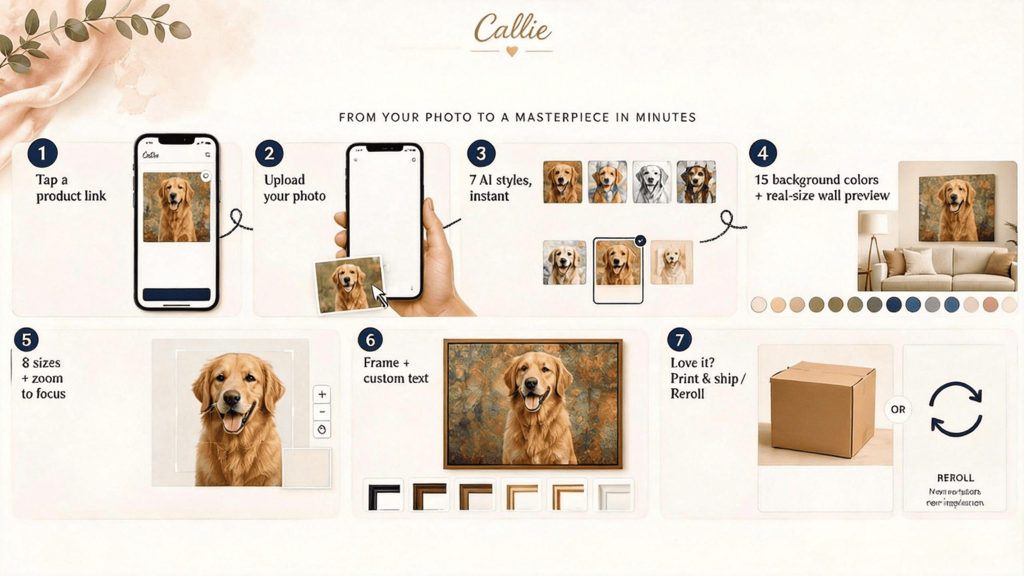
Step 1 — Click a Callie canvas printing product link. Start on a canvas product page — for example, the pet photo canvas print.
Step 2 — Upload your photo. Drop in any image from your phone or computer. A clear, well-lit photo gives the best result, but the AI does a lot of the heavy lifting (more on that in Tips). Now and then an upload won’t go through — an unsupported file type, an oversized image, or a photo that trips the model’s content safeguards (see the FAQ for what’s not allowed).
Step 3 — Create in any of our AI styles. Modern Oil Painting, Watercolor, Sketch, Abstract Graffiti, Pearl, Texture, or Warm Minimalist — and more styles are added over time. Each is a built-in AI template prompt tuned for a distinct look, and the effect renders live on the front end. A generation typically takes around 26 seconds on average, and simpler images often finish in just a few seconds.
Step 4 — Choose a background color and preview on your wall at real size. Pick from 15 background colors to set the mood, then switch to wall preview — the canvas appears at the exact size you’ll hang it, so you can judge it against your space.
Step 5 — Switch sizes and fine-tune focus. Choose among 8 available sizes, then zoom and drag to set the focus point or crop the composition. The preview updates live.
Step 6 — Pick a frame and add custom text. Choose a frame style, and add optional personalized text — a name, date, or short message — to make it yours.
Step 7 — Commit, or regenerate. If you love it, it becomes the production image and heads to printing, then packing and shipping. If you don’t, regenerate with the same photo for a fresh take, or upload a different photo — as many times as you like until it’s right.
Our AI Styles, Explained
We currently offer the styles below, and we keep adding more — so the library you see may have grown since you last visited.
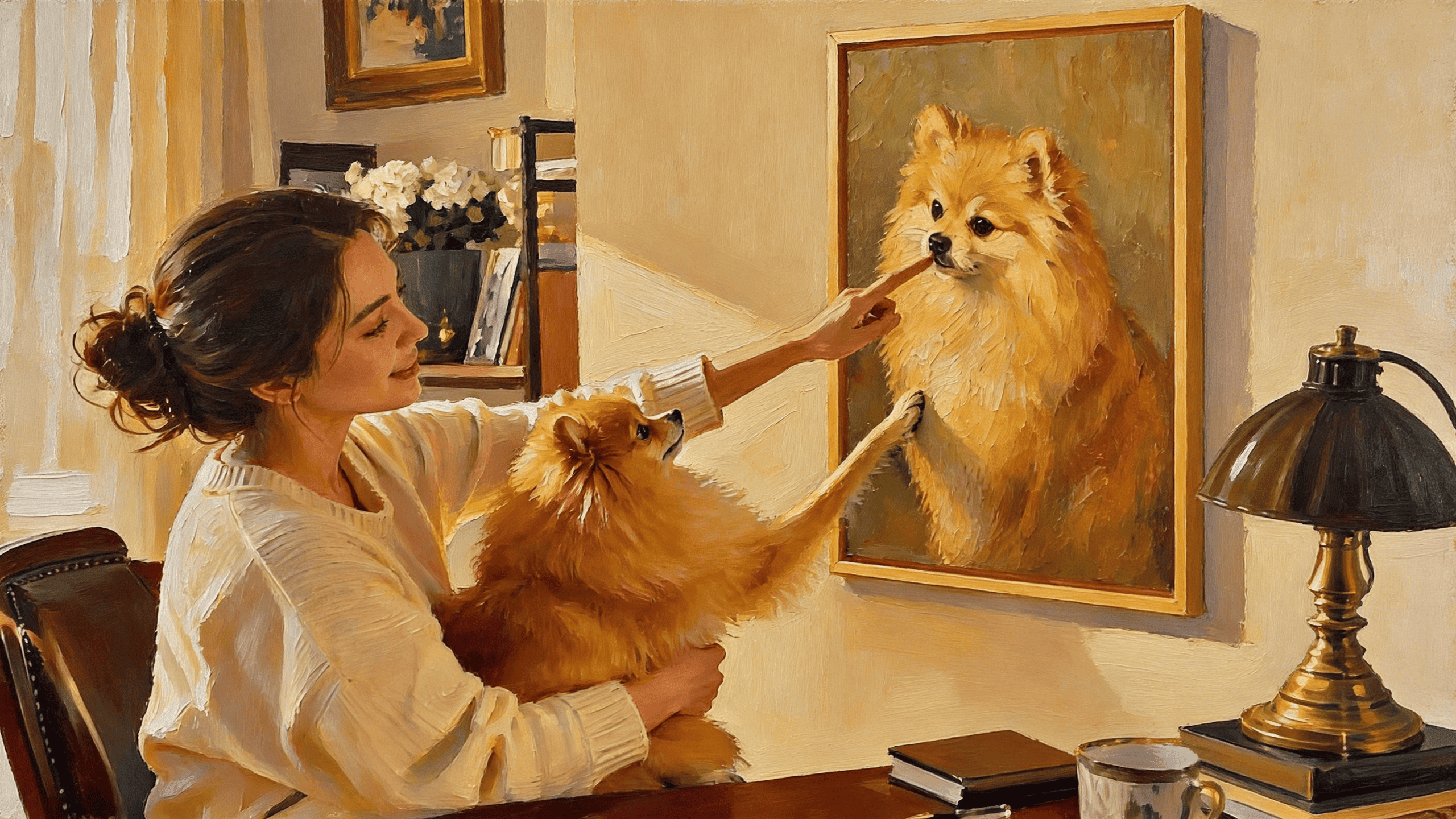
Modern Oil Painting — Thick, painterly strokes and rich color depth; your photo reimagined like a contemporary gallery oil. Best for: portraits, landscapes, and bold travel shots with strong light.
Watercolor — Soft, luminous washes with feathered edges and a paper-like feel. Best for: nurseries, pet portraits, and gentle family or wedding moments.
Sketch — Clean line-art and graphite shading, editorial and minimal. Best for: architecture, line-drawing-style couples’ portraits, and “drawing-to-canvas” keepsakes.
Abstract Graffiti — Street-art energy: vivid color, spray texture, and attitude. Best for: music fans, teens’ rooms, and statement pieces from high-contrast photos.
Pearl — A luminous, pearlescent sheen with a soft glow and refined edges. Best for: bridal and anniversary gifts, a baby’s first year, and elegant keepsakes.
Texture — A tactile, layered surface that reads as woven or embossed. Best for: close-ups, fabric or flat-lay shots, and cozy, material-rich prints.
Warm Minimalist — A muted palette, calm composition, and lots of breathing room. Best for: Scandinavian or Japandi interiors, and the quiet everyday moments you want to soften.
Creative Ideas — What Photos Make Great Canvas Prints
- Wedding & engagement — Vows, first dance, the venue at golden hour. Pearl or Modern Oil elevates them into heirlooms.
- Family & kids — A candid laugh in Watercolor; a milestone year in Warm Minimalist.
- Pets — Dogs and cats as Abstract Graffiti or Sketch make unforgettable wall art.
- Travel — Skyline or mountain shots as Modern Oil Painting; street scenes as Abstract Graffiti.
- Baby’s first year — Tiny hands in Pearl or Watercolor; a nursery staple.
- Friends & teams — Group shots reimagined as Sketch or Texture for a shared space.
Any photo you care about is a candidate. The AI handles the style; you bring the moment.
Tips for the Best Result
- Start with the highest-resolution photo you have — the zoom-and-focus step loves detail.
- Good light beats a fancy camera — bright, even lighting reads best across all our styles.
- Mind the focus point — use the zoom step to keep faces or the key subject centered.
- Match style to room — Warm Minimalist for calm spaces, Abstract Graffiti for bold ones.
- Use the regenerate loop — a “meh” first pass is normal; reroll or swap the photo until it clicks.
Why Make Yours with Callie
Callie’s AI canvas tool is built around one promise: you see it before you ship it. Powered by an advanced AI model with a growing set of curated styles, a real-size virtual wall preview, and a regenerate-until-happy loop, the guesswork is gone. When you’re happy, your file becomes the production print, gets packed, and ships to your door. Start your canvas from a photo you love on our canvas printing page.
Frequently Asked Questions
Can I use any photo for an AI canvas print?
Yes — phone shots, digital downloads, or scans all work. Clearer, higher-resolution images give the sharpest result, but the AI adapts most photos into a finished style.
Why was my photo rejected or unable to upload?
Most photos upload without a hitch. When one doesn’t, it’s usually a simple fix — an unsupported file type or an image that’s simply too large. Every upload is also screened by the AI model’s content safeguards. The model has zero tolerance for explicit sexual content, and it also prohibits child sexual abuse or exploitation material, non-consensual intimate imagery, and any content that promotes violence, hatred, self-harm, or harassment. If a photo is blocked, just swap in a different image and try again.
What if I don’t like the AI result?
Regenerate with the same photo for a fresh take, or upload a different photo. You can reroll as many times as you like before committing — you only print what you love.
How long until my canvas prints and ships?
Once you commit, your image becomes the production file and moves to printing, packing, and shipping. You see the exact preview first, so there’s no revision delay after you order.
What sizes are available for AI canvas prints?
Choose from 8 available sizes, and use the virtual wall preview to see your canvas at the real size you’ll hang it before you decide.
Do I need to write your own AI prompts? No. Each style is a built-in AI template prompt — you just pick a look and the tool does the rest.